
A video background brings movement to a hero or a section without a play button: a short, muted clip loops behind your headline. In Gutenslider any slide can have one, from the Media Library or from a link, in the free plugin.
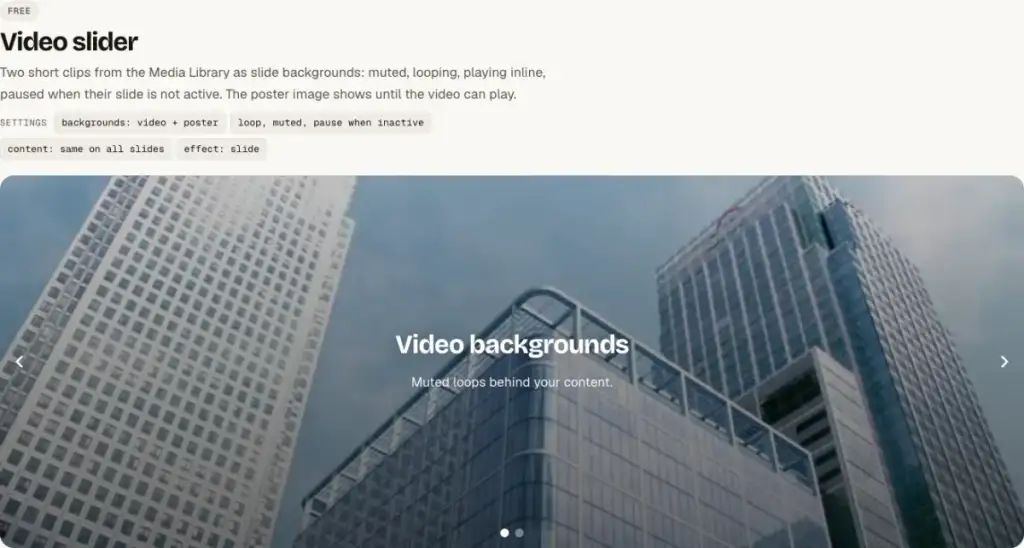
Add a video background
- Add the Gutenslider block and set it to full width; turn on Full screen height in the Slides panel for a full-screen video.
- Select a slide and, in its Background settings, choose Video.
- Pick a video from the Media Library. Loop and Muted are on, and the video pauses when its slide is not shown.
- Add a Poster image: it shows until the video can play, and on connections that don’t load video.
- Set Content to Same on all and add your headline and button.
Prepare the video file
- Keep it short: 10–20 seconds that loop without a visible jump.
- 1920 px wide is enough for a full-screen background; 1280 px is fine behind text with an overlay.
- Export as MP4 (H.264) without sound, at a moderate bitrate. 3–6 MB is a good target.
- Add an overlay (a dark color at 30–40 %) so white text stays readable on every frame.
Videos from YouTube or a link
Instead of uploading, a slide can play a video from a link: YouTube videos and playlists, or a direct link to an .mp4, .webm or .mov file, in the free plugin. Pro adds YouTube channels, Vimeo, Dailymotion and TikTok. Players load only when their slide shows; YouTube plays from youtube-nocookie.com. See the YouTube examples.
On phones
Muted, inline videos autoplay on iOS and Android. Use the slide’s Focal point to keep the subject in view when the video is cropped to a portrait screen. If the video is mostly decoration, consider a photo slider on phones instead: hide the video slider on phones with Show the slider on, and show a second, lighter slider there.