
A slider’s animation is the transition that decides how one slide replaces the next. Gutenslider has three slide transition animations in the free plugin, slide, fade and flip, and 29 more with Pro: three 3D effects, six shaped effects and twenty WebGL transitions.
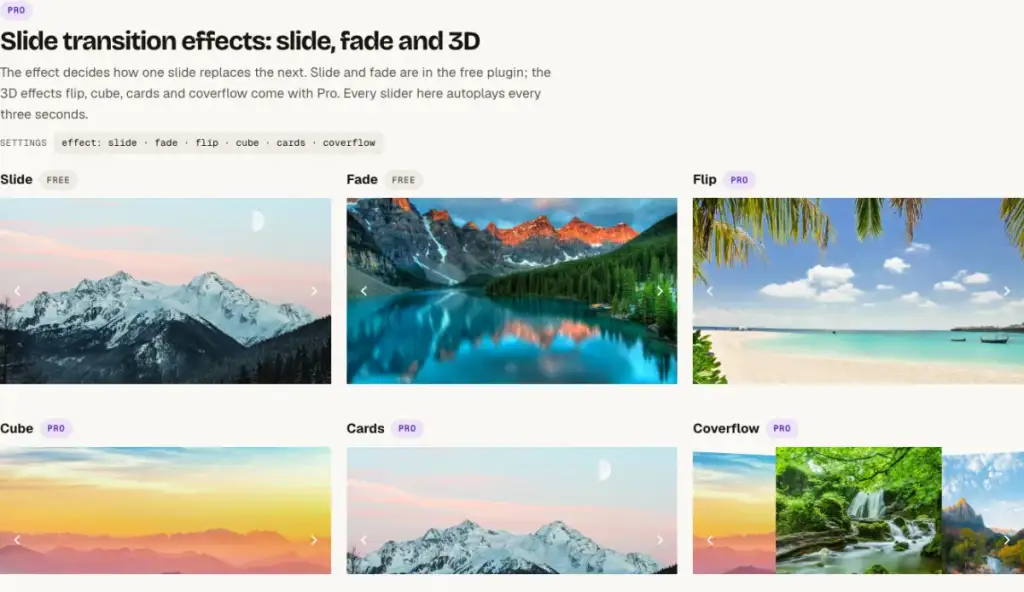
All slider animations compared
| Animation | Plan | How it looks | Good for |
|---|---|---|---|
| Slide | Free | The slides move sideways | Carousels with several slides in view |
| Fade | Free | One slide crossfades into the next | Heroes with a fixed headline, quotes, photo series |
| Coverflow | Pro | The neighbouring slides tilt like album covers | Portfolios and product carousels |
| Cards | Pro | The slides stack like a deck | Testimonials and short series, one at a time |
| Cube | Pro | The slides turn on the sides of a cube | A few slides that should feel like one object |
| Flip | Free | One slide turns over to show the next | Question and answer, before and after |
| Shaped: Morph, Parallax, Tilt, Fan, Stack, Reveal | Pro | The slides change shape as they move, with CSS only | Heroes and galleries with more motion than a slide |
| WebGL: Liquid, Ripple, Swirl, Glitch, Burn and 15 more | Pro | Drawn on the graphics card over a crossfade | Photo heroes and visual portfolios |
Choose an effect
- Select the slider (the List View is the quickest way).
- Pick an option in Effect, in the slider’s settings. The effects are grouped; each one shows a short description.
- Press Preview in the slider’s toolbar: it runs the real slider with the effect in the editor.
Slide, fade and flip (free)
- Slide moves the slides sideways. It is the only effect that works with several slides in view, so carousels use it.
- Fade crossfades one slide into the next. It suits heroes with a fixed headline, quotes and photo series.
- Flip turns one slide over to show the next, one slide at a time.
3D effects (Pro)
Coverflow tilts the neighbouring slides like album covers, Cards stacks the slides like a deck, and Cube turns them on the sides of a cube. Cards and Cube show one slide at a time.
Shaped and WebGL transitions (Pro)
The six shaped effects (Morph, Parallax, Tilt, Fan, Stack and Reveal) change the slides’ shape as they move, with CSS only. The twenty WebGL transitions, such as Liquid, Ripple, Swirl, Glitch and Burn, are drawn on the graphics card over a crossfade. See them on the examples page.
Speed and timing
Transition time sets how long the change takes (0.7 seconds by default) and Time per slide how long each slide stays. Longer transitions suit fades and photos, short ones suit carousels. More in Slide duration and autoplay.
Reduced motion
Visitors who turn on “reduce motion” in their operating system get a calm slider: no autoplay, and the WebGL transitions become a crossfade. You don’t need to set anything for this.